Edit Objects
How to change the description of the object.
1. Push the 'Edit' button
To edit an object you have to be assigned an Editor role for the object you want to work with.
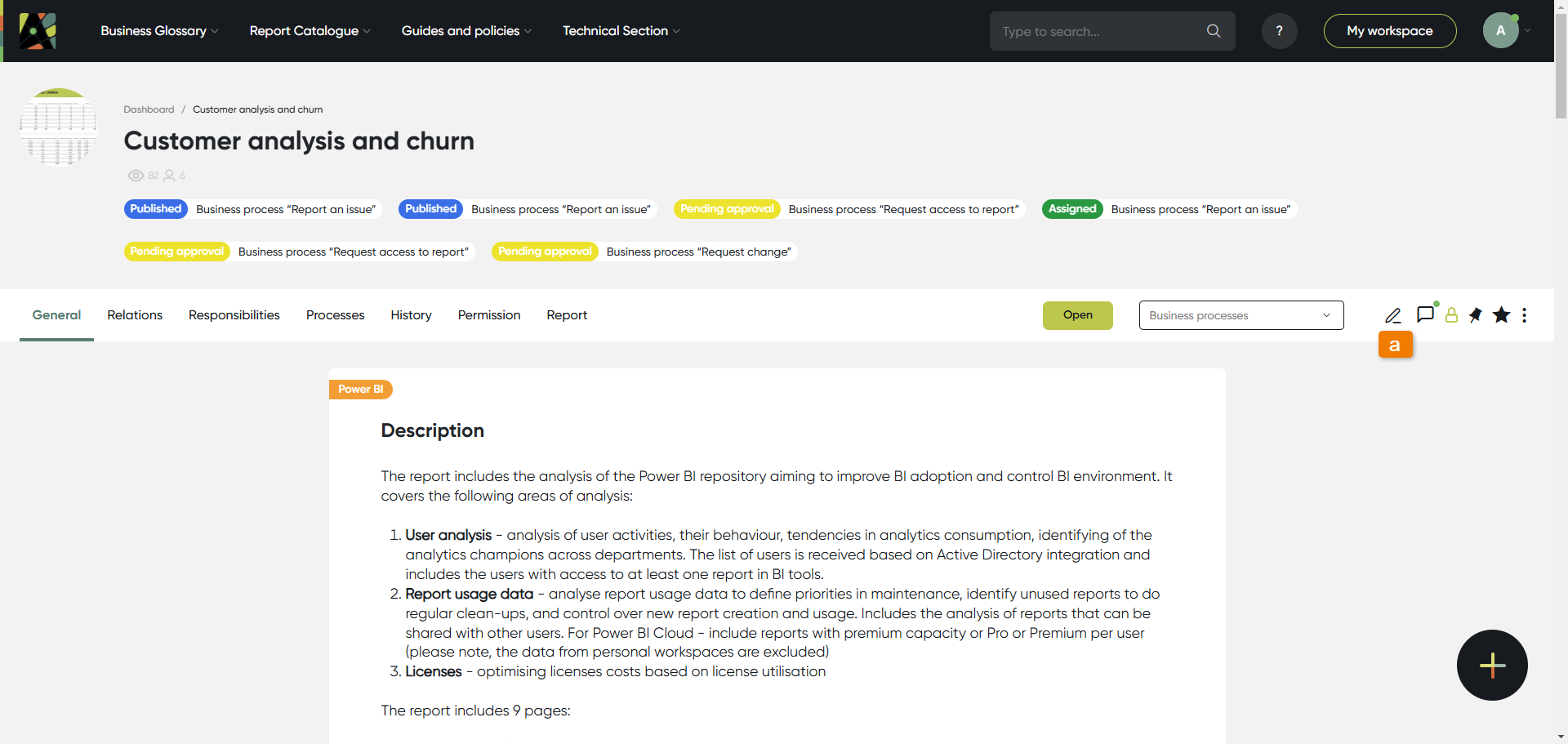
Open the desired object description and click the ”Edit” button.
The button is available on all pages where you have permission to edit objects. (a)
2. Edit mode
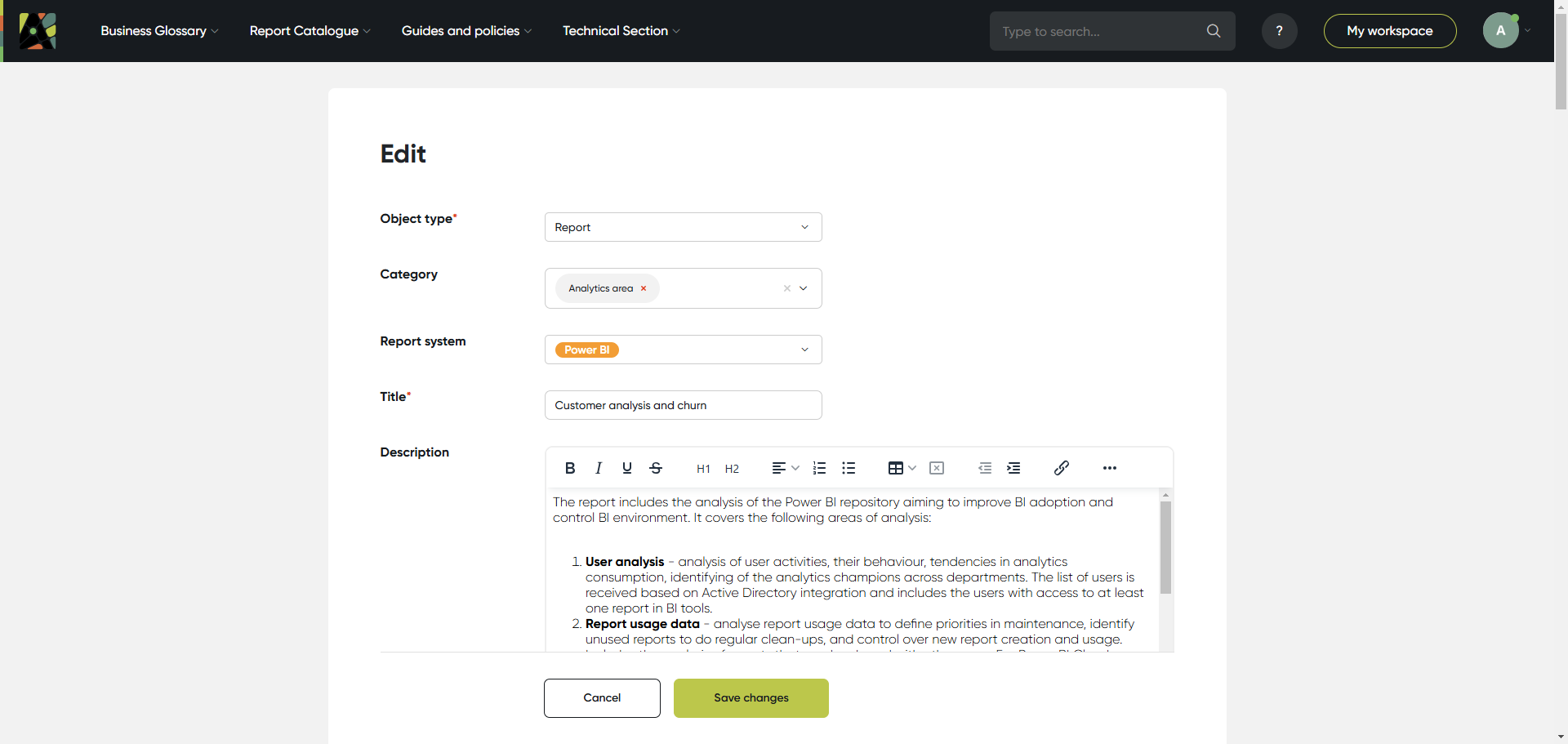
Upon clicking the "Edit" button you will see the edit mode open. Here you can make the required changes in attributes and/or in relations of the current object.
3. Attributes
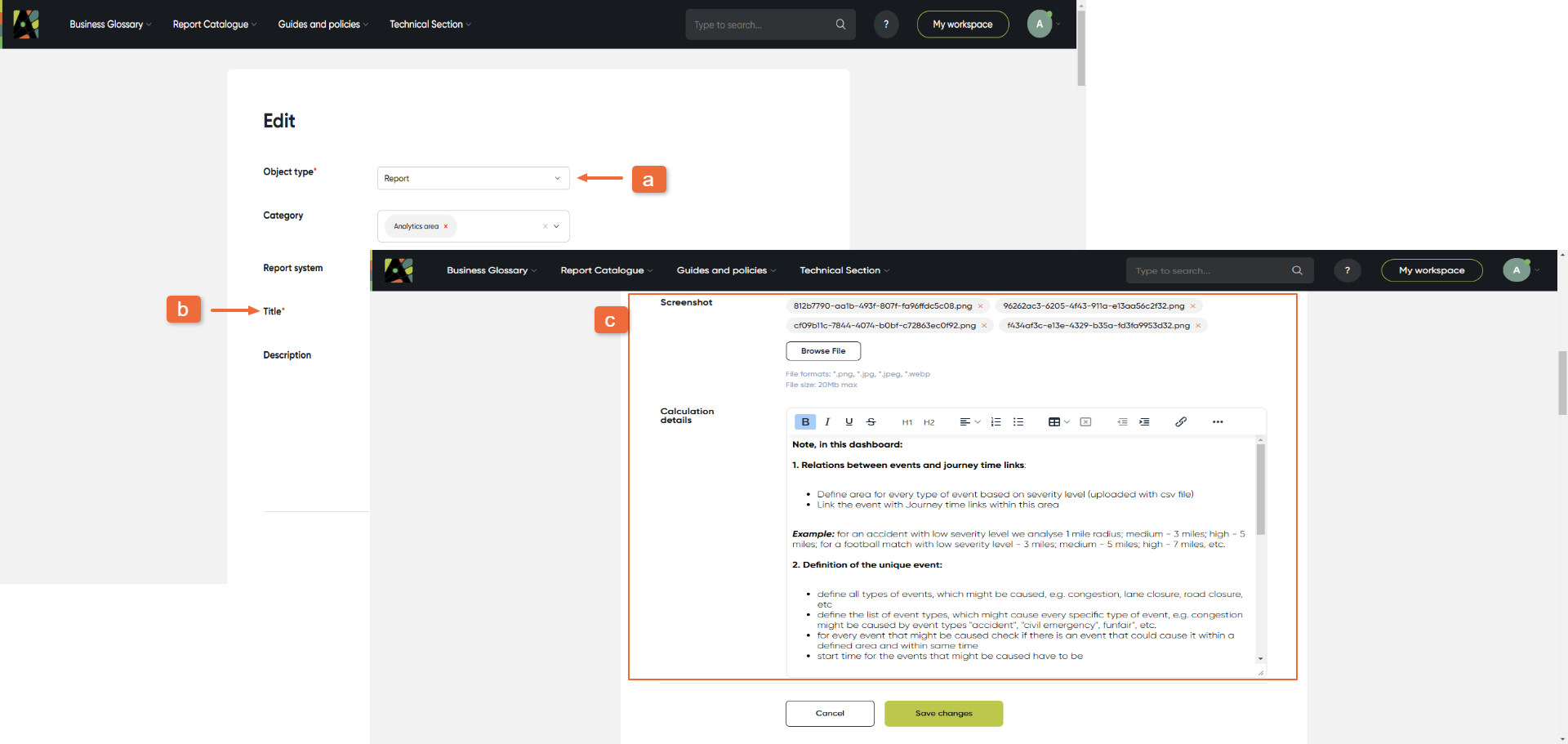
You can change the object's type and attributes here.
There are different attribute types available in the application (check the full list of available attribute types here).
In the Edit mode you will see:
(a) Object type
(b) The required fields marked with ”*”, for example, “Name”
(c) Attributes for this object type.
4. Relations
Scroll down to see the Relations section.
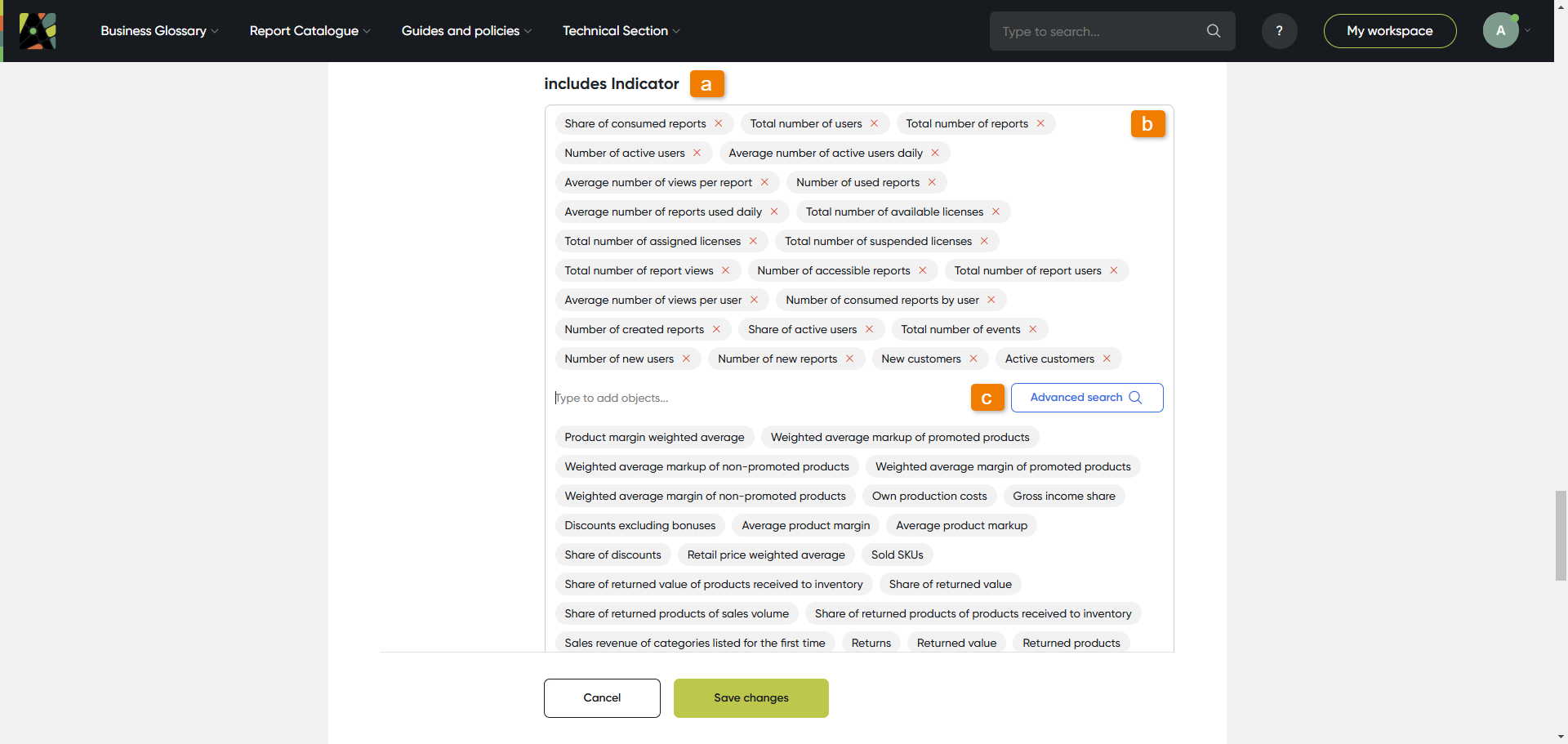
In this section define the object relations with all other objects. For this:
(a) See relation name; the related object type is always included in the relation name
(b) Click on the relation field, start typing and select the related object from the list
(c) You can use Advanced search to check the list of objects of this type with all available filters.
5. Responsibilities
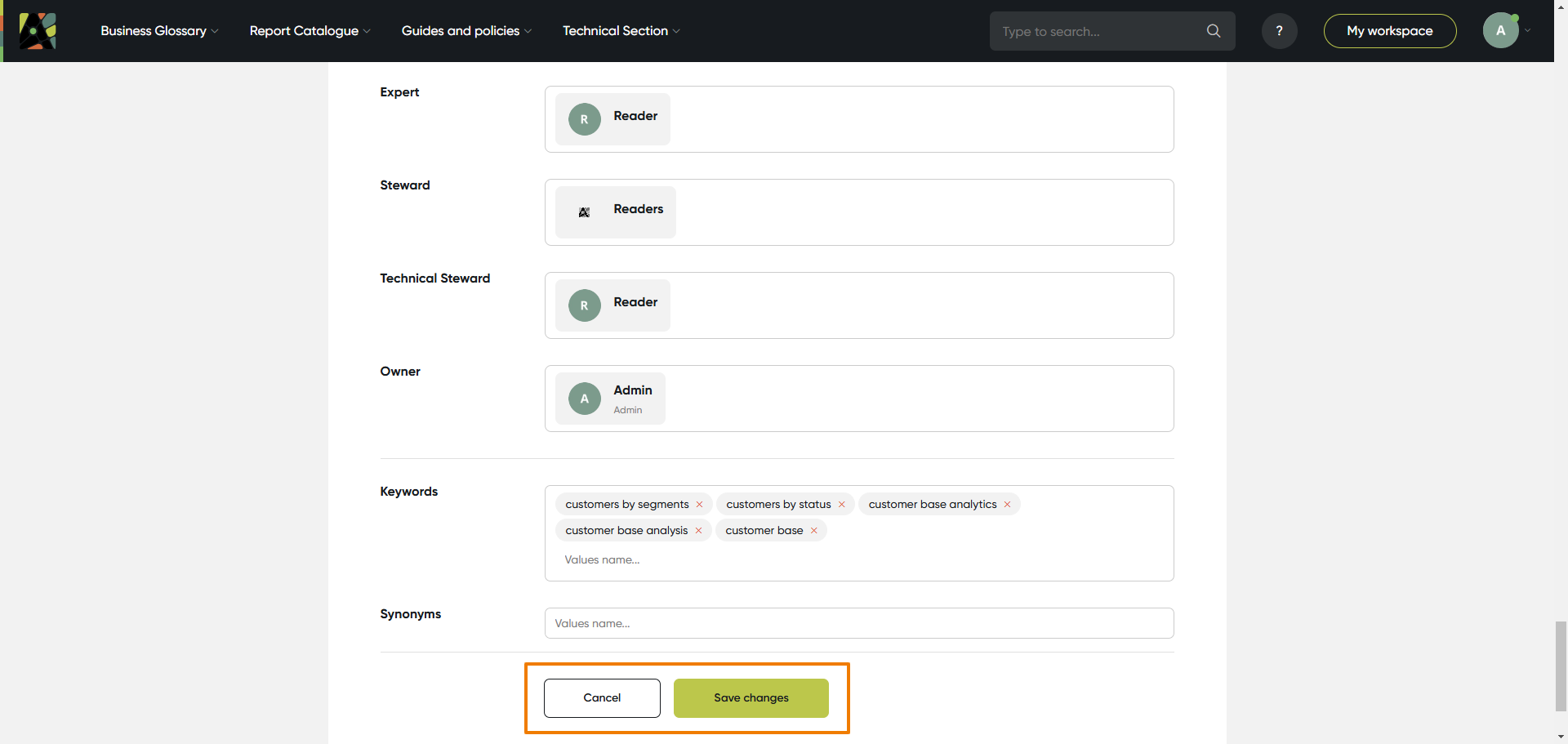
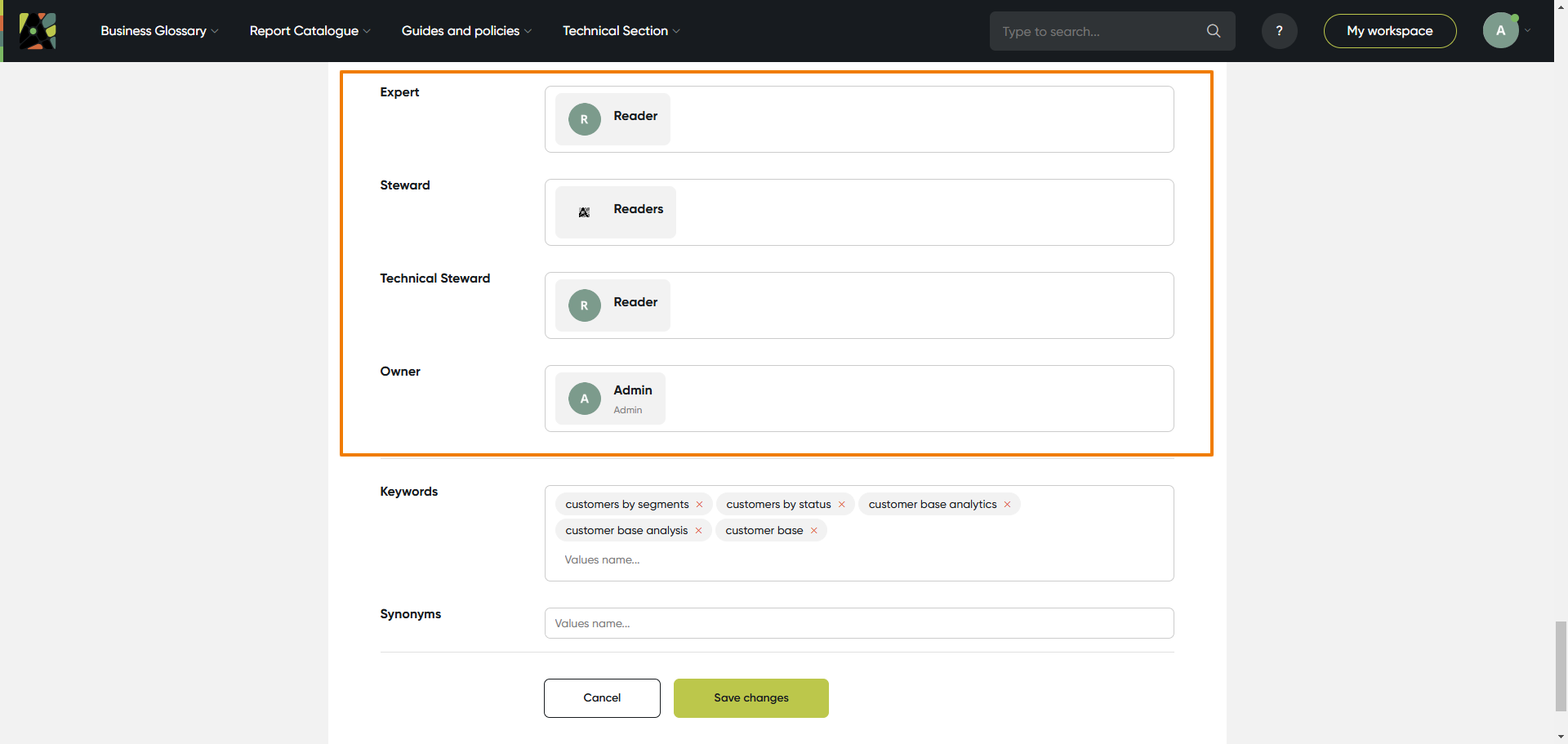
Define the people who are responsible for this object. There are eight predefined roles: Expert, Steward, Technical Steward, Subscriber, Owner, Assignee, Reporter, Participant.
(a) Click on the field with the relevant role and start typing; select the person or a user group from the list that comes up
Please note When you hover over a user’s name, a tooltip showing their email address appears.
6. Keywords and synonyms
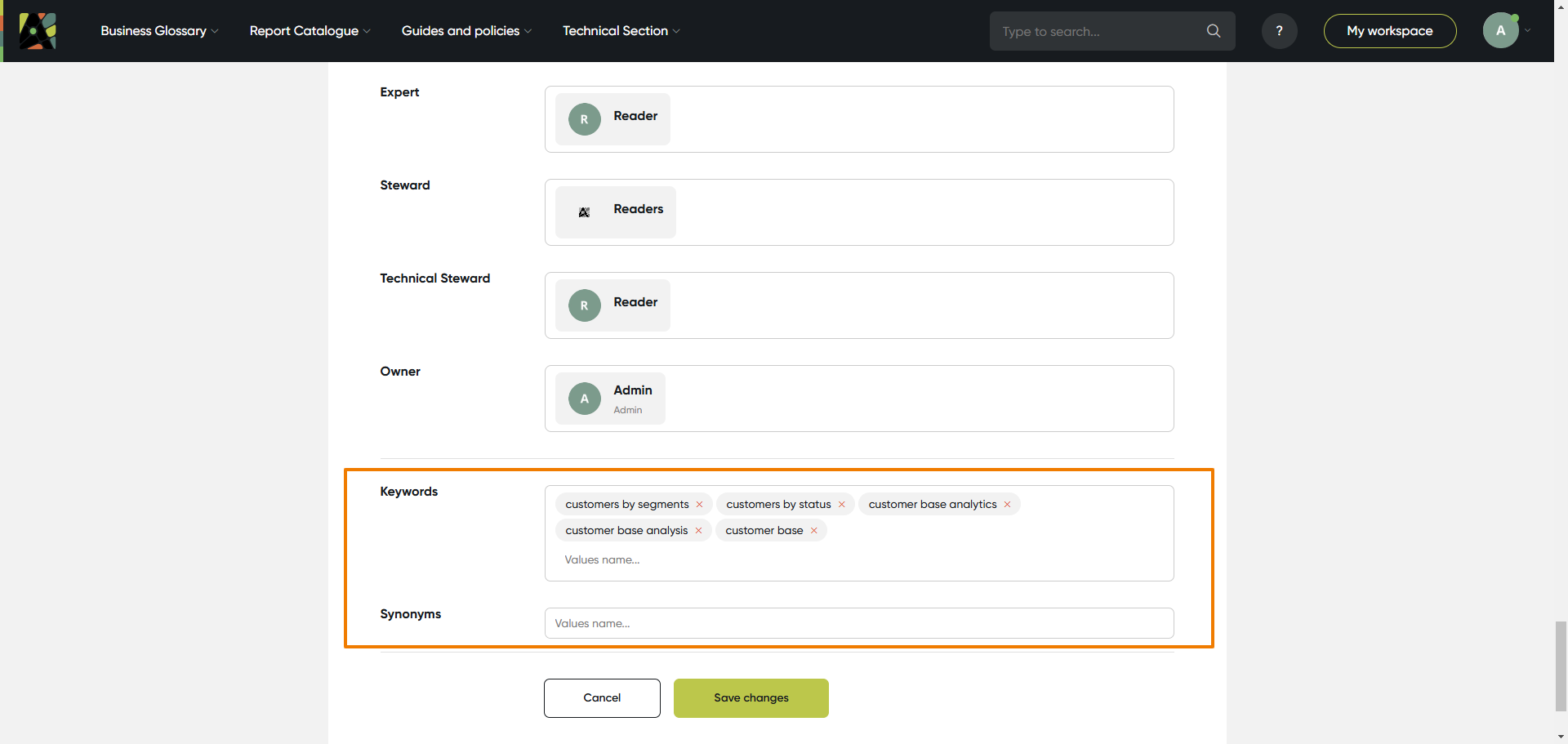
Add keywords and synonyms to improve search. Keywords are created as tags, and synonyms – as a text field.
(a) Click on the field keywords; type the keyword, click “enter”, then start typing the next one; for synonyms just type all relevant text.
7. Save
Save the object by clicking the Save button (a), or cancel if you don’t want to save the changes.