Workspace and Dashboard
There are 2 ways to save the objects you use regularly: either to your Workspace or to your Dashboard.
My Workspace
If you're planning to use some object or report regularly and don't want to search for them every time, you can add this object to your personal Workspace. It works basically as your favourites tab.
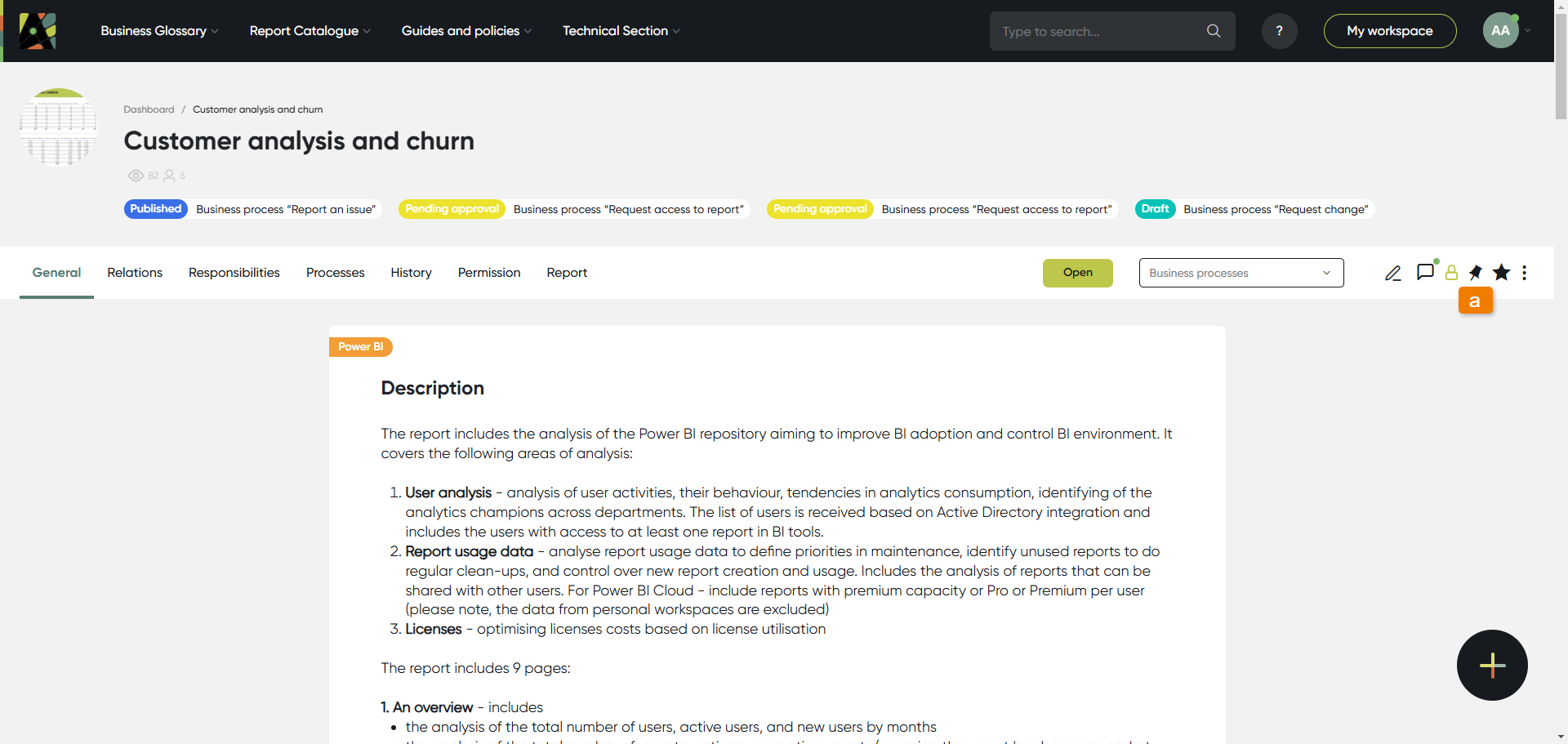
To save an object to you Workspace, you can click the Star button on any object page (a).
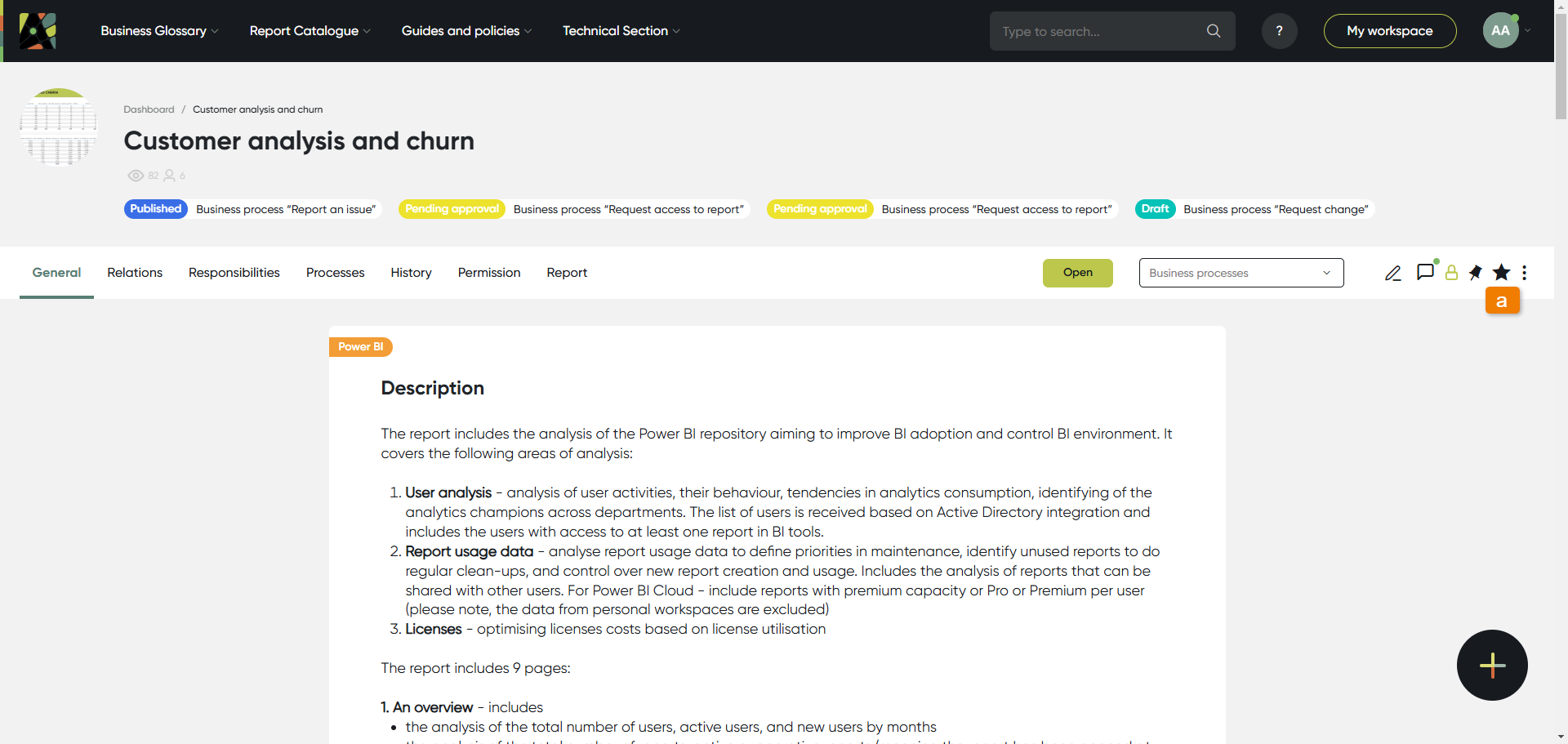
You can access your Workspace from any page by clicking the button at the top of the screen (a) or in User Menu (b).
There you can find all the objects you've saved (с) grouped by categories:
- All objects - contains all objects you've pinned using the 'Star' button
- My objects - automatically shows all objects and categories you've created. You can unpin them from the workspace.
- Requests - cards of requests with recent activity
- My processes - you'll find processes information you're involved with
- My roles - shows objects where you have a role assigned, including role name, who granted it, and when. Object names are links to their pages.
Please note: the checkbox allows you to select all objects, after which the Unstar all function becomes available.
My Dashboard
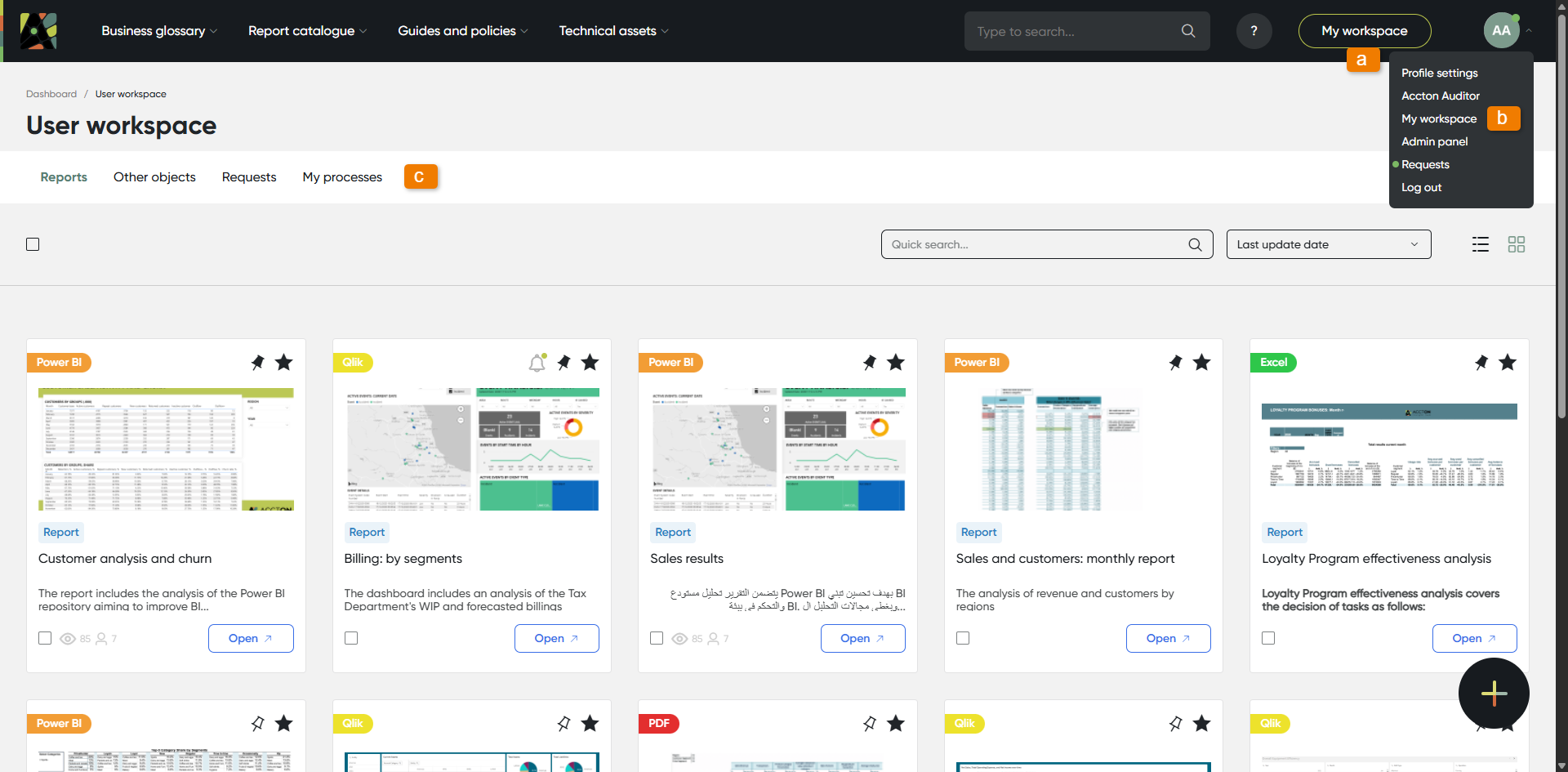
If you work with analytics very often and use reports daily or weekly, the best way to work with Analytics Hub is to add these reports to your Dashboard. The Dashboard is displayed on your Home page so that you can easily access all the information you need right after login.
Your Dashboard consists of 3 main sections: your Pinned (this includes the reports you've saved for daily usage), Picked for Me (includes updates from your subscribed categories and recommended content enabled by your Admin) and the My Categories (displays all the categories to which you've subscribed or were pinned).
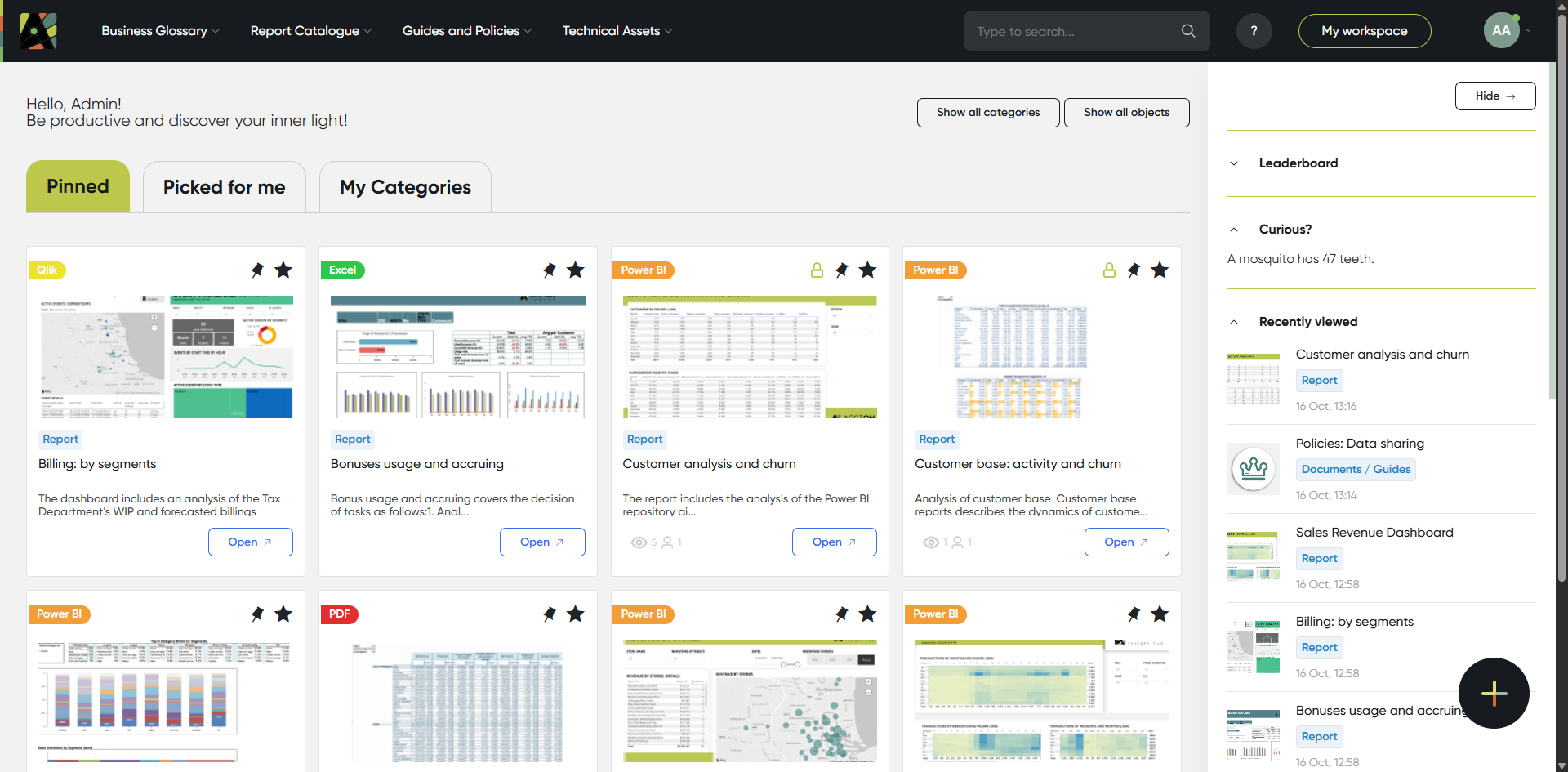
To add a report to your Pinned section click the button (a) on any object page.
To return to your Home page with your Dashboard, simply click on the logo at the top of the screen. (b)